
Standings Divisions
Arrange teams into their divisions on the standings.
Jump to section
Overview
If your league uses divisions, you can drag and drop teams into the right division right on the standings.
Step-by-Step: Arranging Divisions
1
Open the Events tab on your DashboardFrom your LeaguePals Dashboard, click the Events tab. Your current events are listed under Active.
2
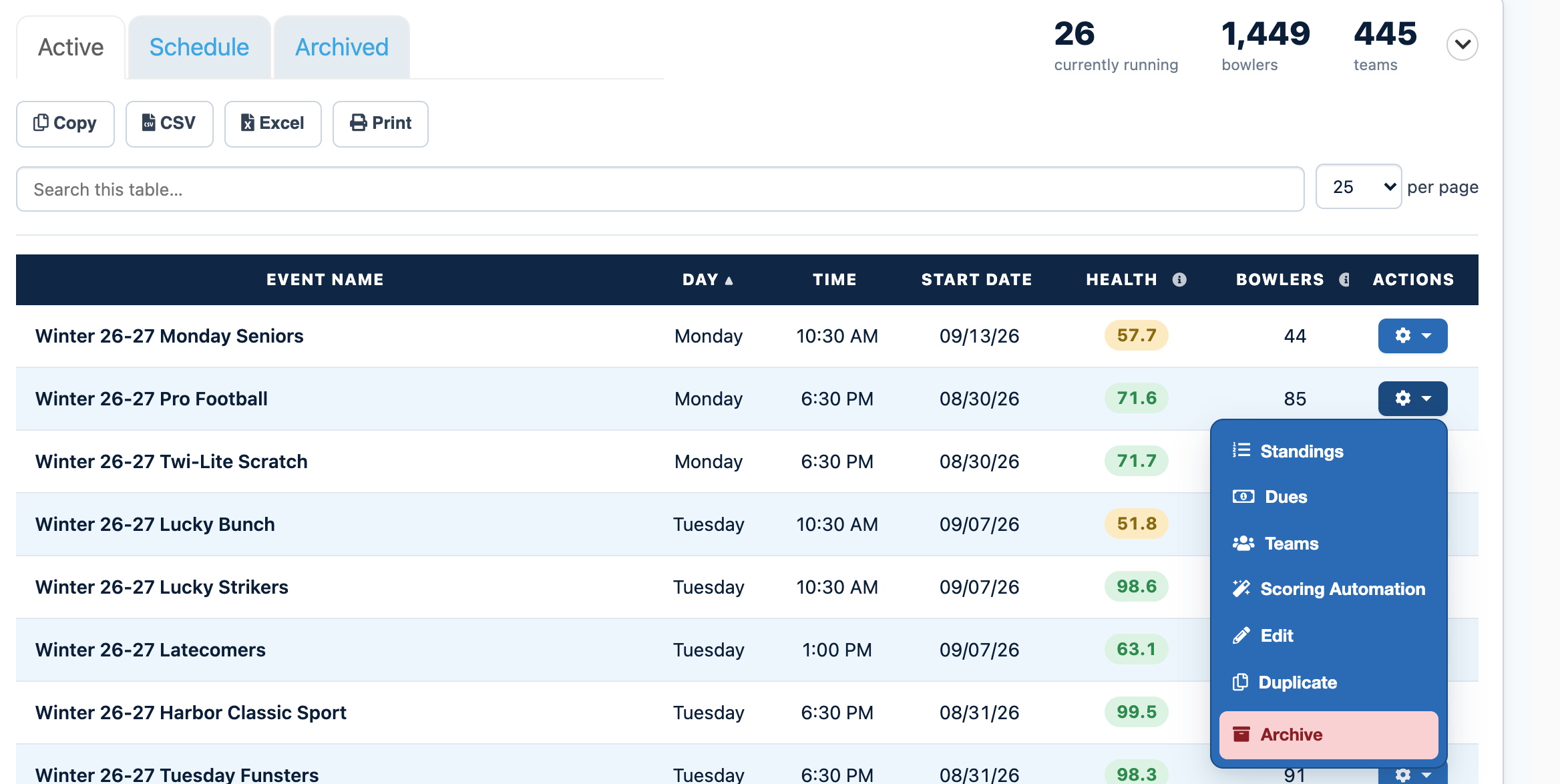
Click the gear icon next to your eventFind your event in the list and click the gear icon in the Actions column. If you have a lot of events, type the event name into Search this table to find it faster.
3
Choose StandingsThis opens the event's main page with its standings, scores, and the Edit Memberships, Edit Substitutes, and Scoring Automation buttons.
4
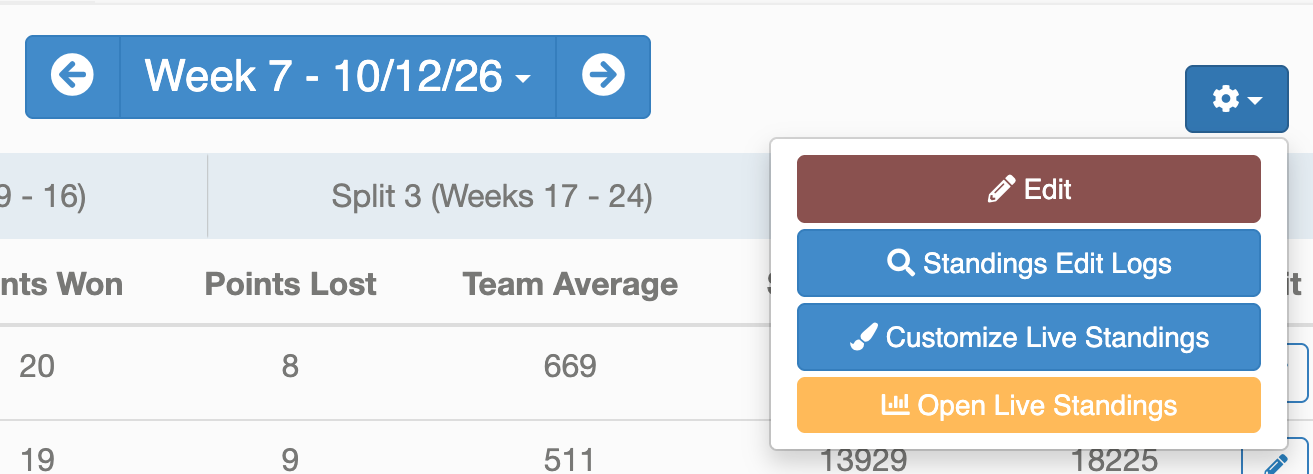
Open the standings gear menu and choose EditClick the gear icon at the top right of the standings, then choose Edit.
5
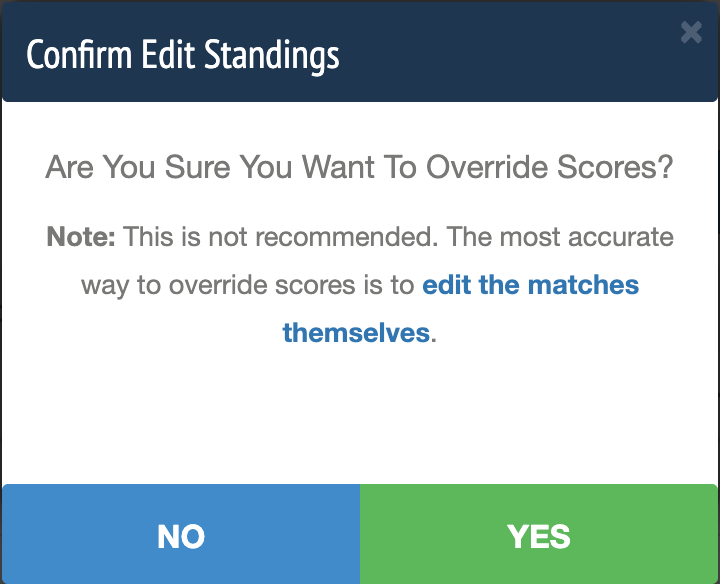
ConfirmClick Yes on the prompt to confirm you want to edit standings.
6
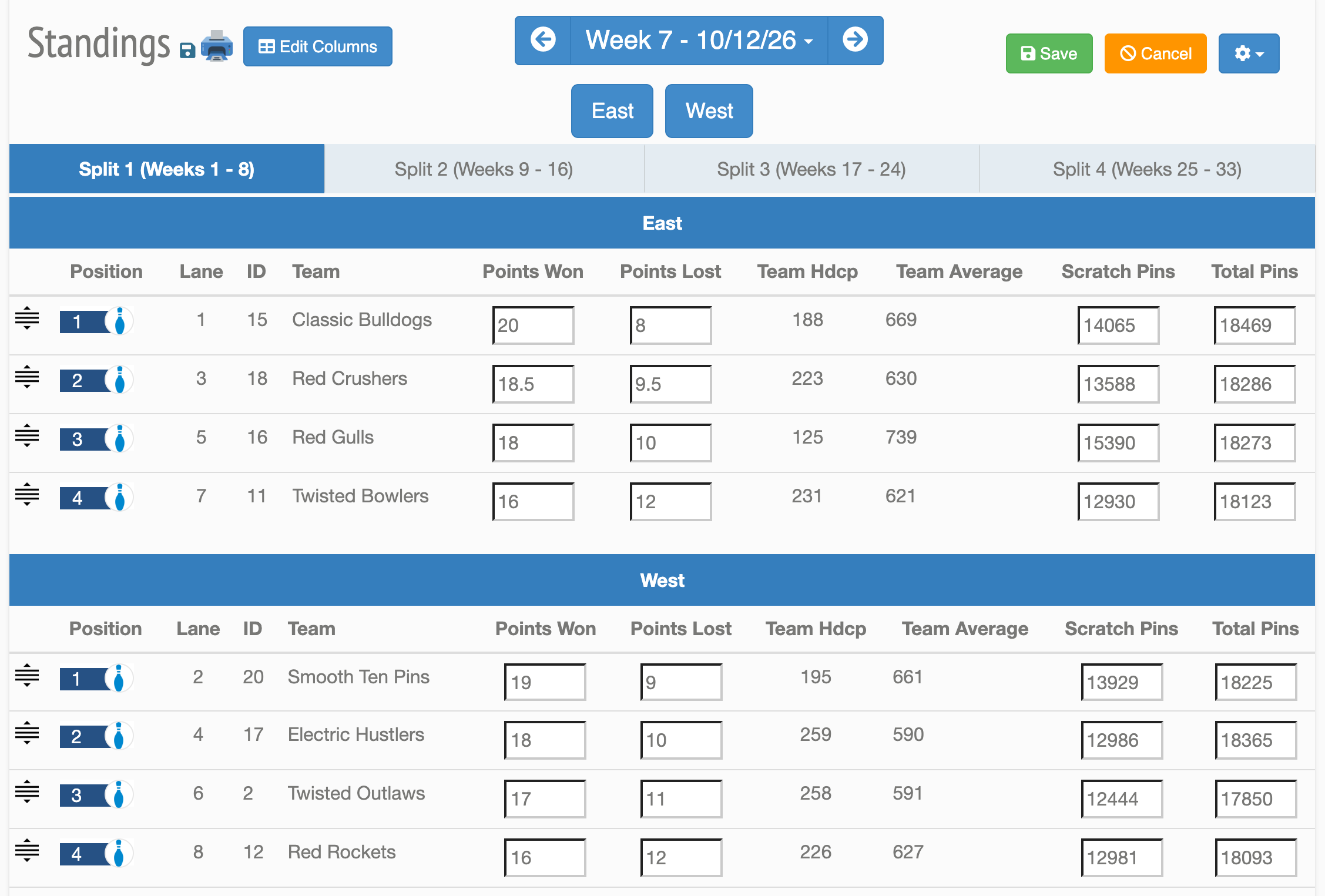
Drag teams into their divisionsOnce the fields are editable, drag and drop each team into its division, then click the green Save.
Video Walkthrough
Watch a short video walkthrough of these steps.
Video not loading? Watch it on YouTube.
Tips and Notes
Tip
Playoff weeks can use your divisions too. See the Divisional Playoff option in Lane Schedule.
Can't find your event?
Events from past seasons are no longer in the Active list. Click the Archived tab next to Active on the Events tab to find them.
Need more help?
If you get stuck, submit a support ticket and our team will be happy to help.
Was this article helpful?
That’s Great!
Thank you for your feedback
Sorry! We couldn't be helpful
Thank you for your feedback
Feedback sent
We appreciate your effort and will try to fix the article