
Lane Schedule
Set up your league's schedule, skip holidays, and control matchups each week.
Jump to section
Overview
The Lane Schedule is your league's calendar. You can skip weeks for holidays and control how matchups are set each week.
Step-by-Step: Editing the Lane Schedule
1
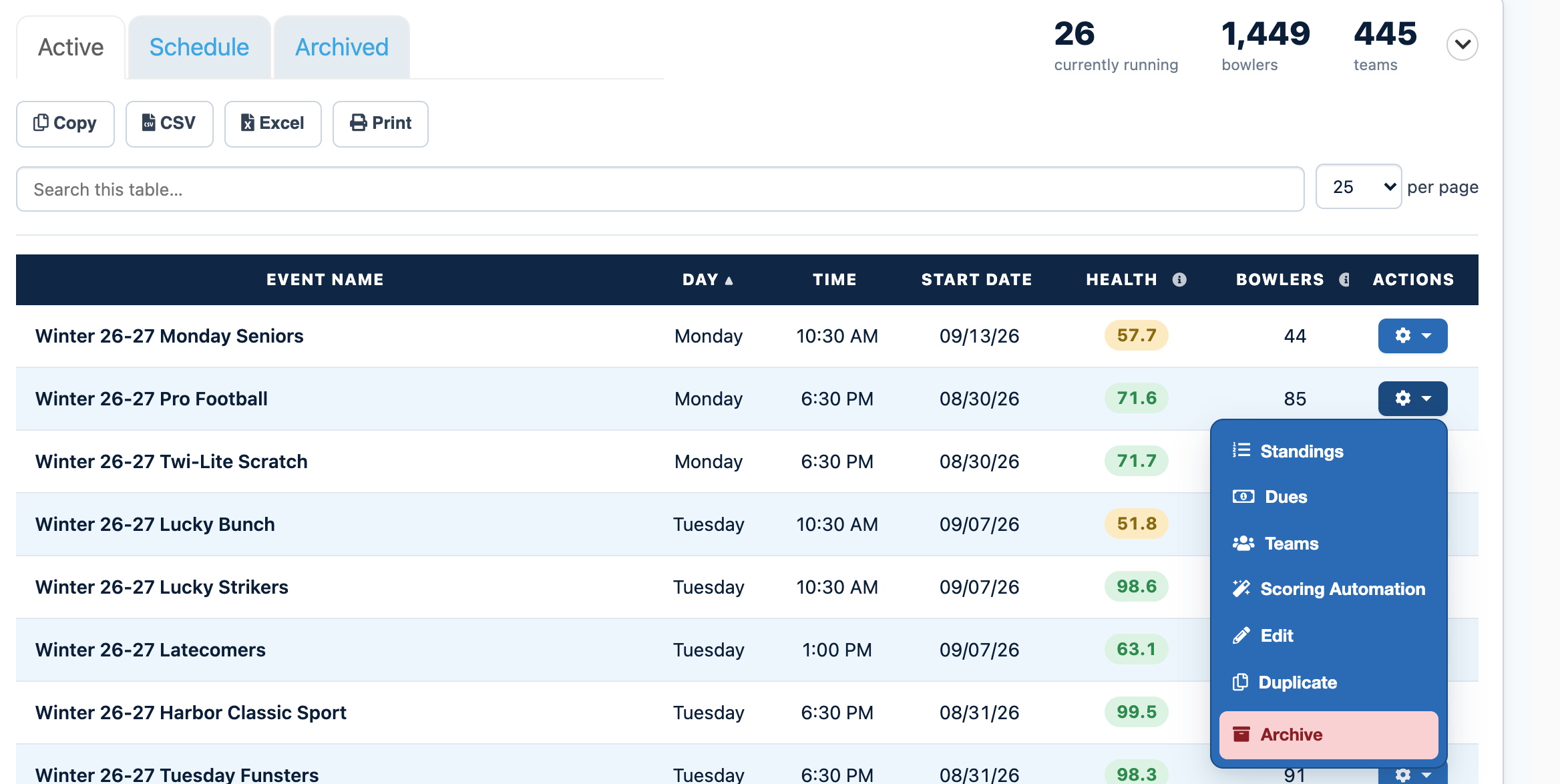
Open the Events tab on your DashboardFrom your LeaguePals Dashboard, click the Events tab. Your current events are listed under Active.
2
Click the gear icon next to your eventFind your event in the list and click the gear icon in the Actions column. If you have a lot of events, type the event name into Search this table to find it faster.
3
Choose StandingsThis opens the event's main page with its standings, scores, and the Edit Memberships, Edit Substitutes, and Scoring Automation buttons.
4
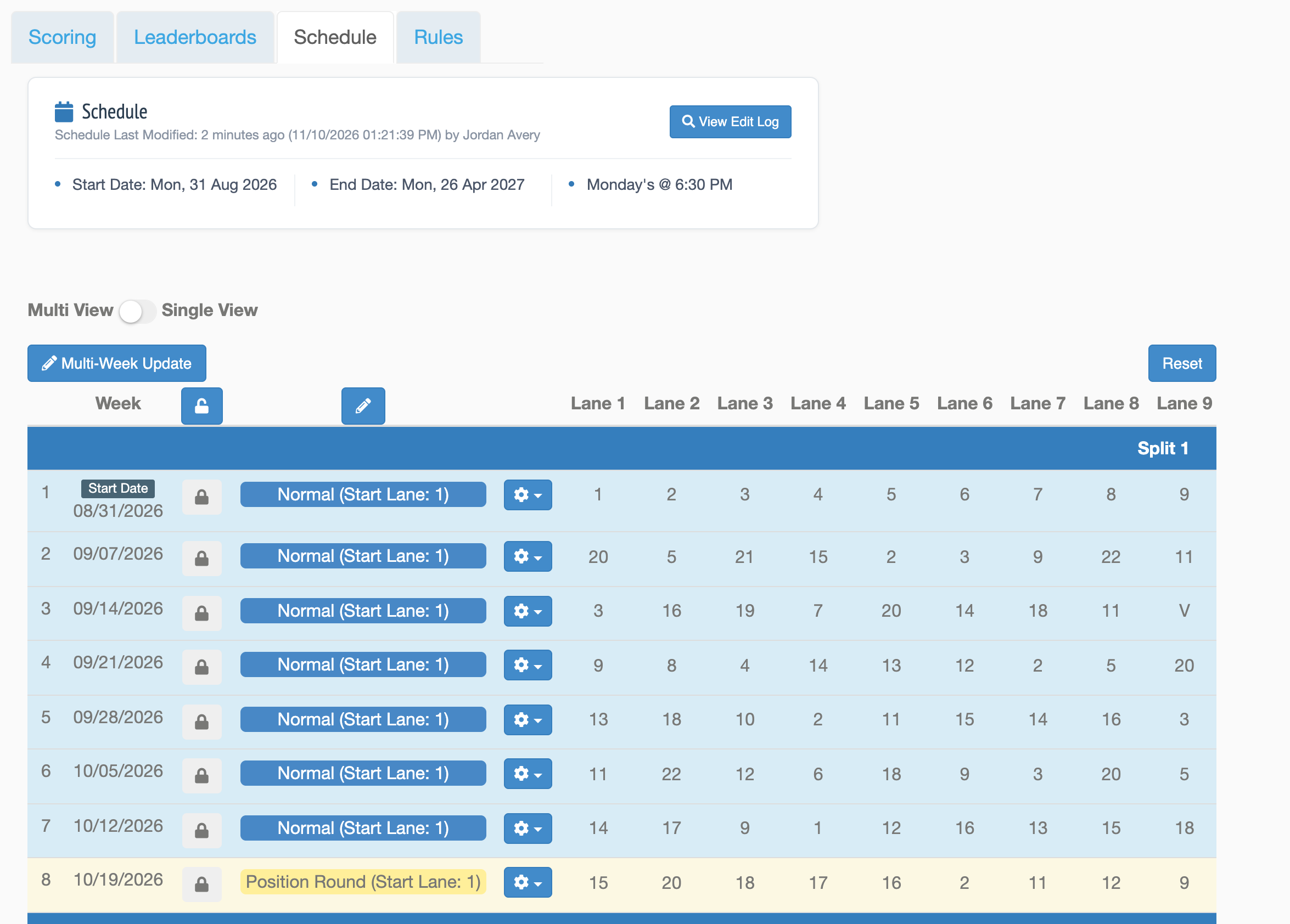
Click the Schedule tabClick the Schedule tab on the event page.
5
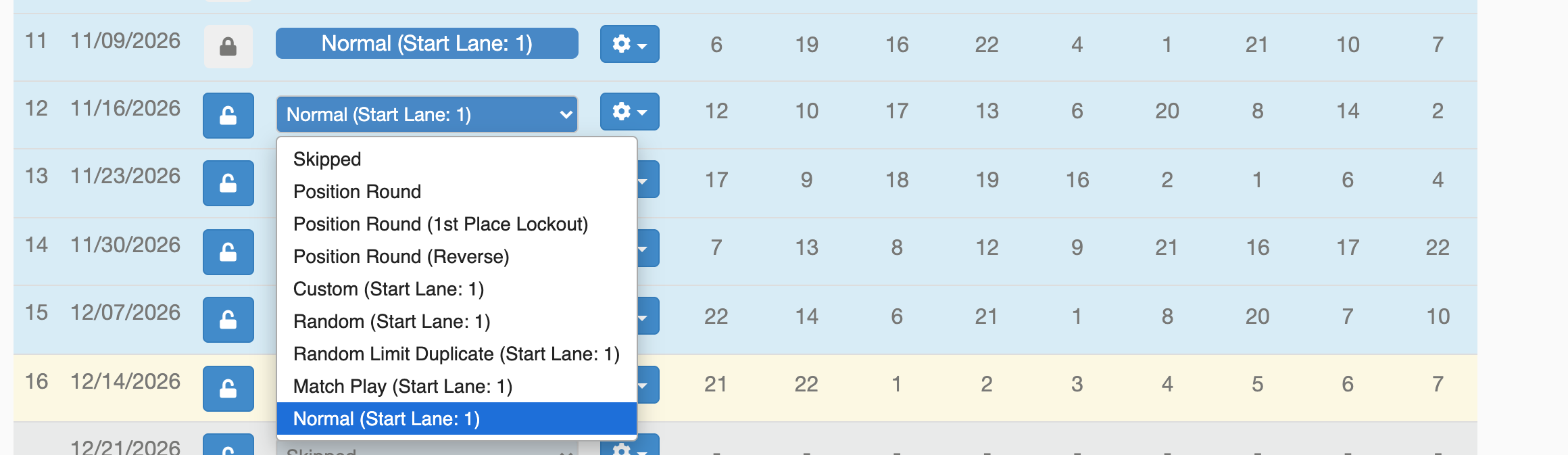
Set each week's typeChoose a type for each week to decide how matchups are set. The types are listed below.
6
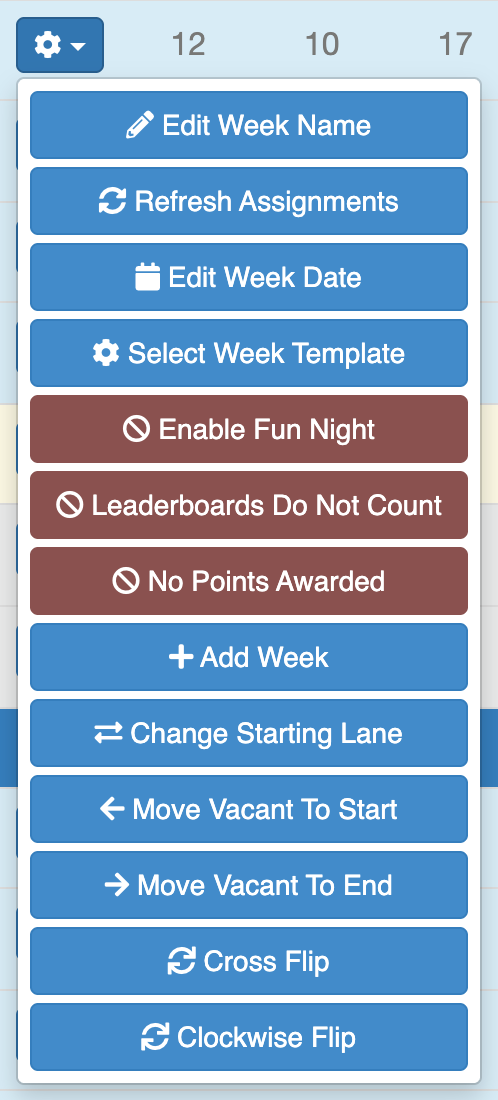
Use the gear icon for more optionsEach week has a gear icon with more options. These are only available when the week is unlocked for editing.
Week Types
- Skipped: The league does not meet that week, usually for holidays.
- Position Round: Matchups follow standings: 1st vs. 2nd, 3rd vs. 4th, and so on. Often used for playoff or rolloff weeks.
- Position Round 1st Place Lockout: When 1st place is locked in, 1st bowls last place, then 2nd vs. 3rd, 4th vs. 5th, and so on.
- Position Round Reverse: Last place vs. second to last, and so on.
- Divisional Playoff (2-Division Position Round): A position round using standings divisions. 1st in division A bowls 1st in division B, 2nd vs. 2nd, and so on.
- Custom: Set the week's matchups yourself.
- Random: Matchups are picked at random.
- Random Limited Duplicate: Random matchups that try to avoid repeats from week to week.
- Match Play: Position round matchups with USBC league schedule lane assignments.
- Normal: The standard USBC league schedule.
Week Gear Options
- Edit Week Name: Change how the week's name shows on the standings.
- Edit Week Date: Move the week to a different day.
- Select Week Template: Use a different week's lineups for this week.
- No Points Awarded: No points are awarded this week.
- Add Week: Add another session in the same week on a different day.
- Change Starting Lane: Choose where the Team ID schedule starts. Team IDs wrap around the center if needed.
- Enable Fun Night: Matches this week do not count toward scores, standings points, or averages.
Lane Schedule Reset
Reset rebuilds the Lane Schedule on every unlocked week. You may need this after adding or removing teams, or after manually updating matchups and standings for position rounds.
One Team Per Pair
1
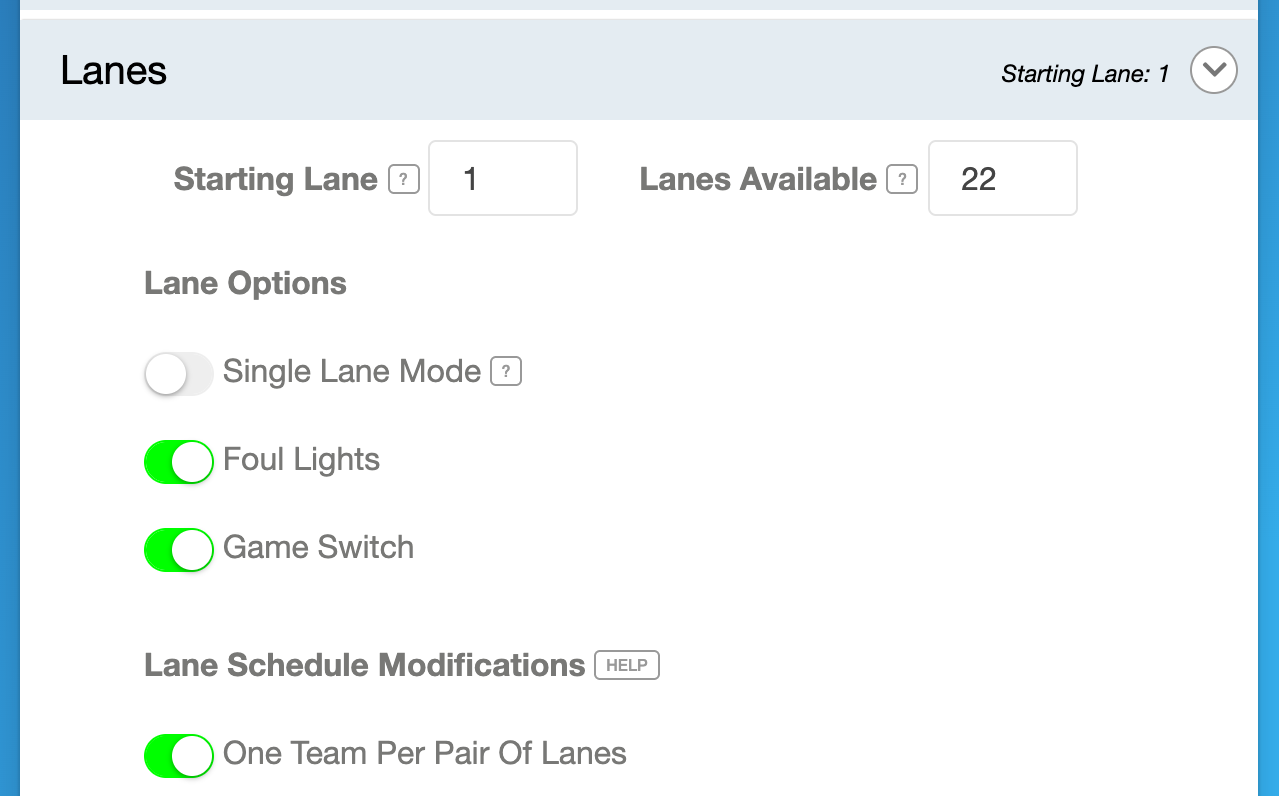
Turn on One Team Per PairIn the create or edit league wizard, on the league info tab, find Lane Schedule Modifications and turn on One Team Per Pair. Each matchup is split across two pairs of lanes, one team per pair.
2
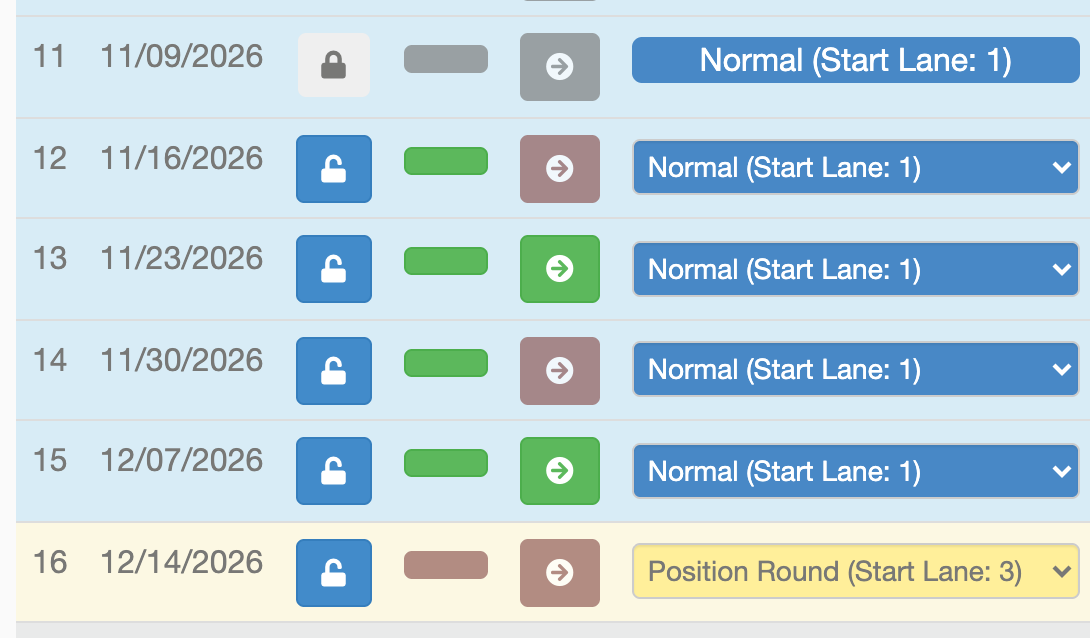
Choose weeks and lanesOnce One Team Per Pair is saved, you can pick which weeks use it, and whether each week uses the left or right lane.
Tip
Team IDs are edited on the same Schedule tab. See Edit Team IDs.
Can't find your event?
Events from past seasons are no longer in the Active list. Click the Archived tab next to Active on the Events tab to find them.
Need more help?
If you get stuck, submit a support ticket and our team will be happy to help.
Was this article helpful?
That’s Great!
Thank you for your feedback
Sorry! We couldn't be helpful
Thank you for your feedback
Feedback sent
We appreciate your effort and will try to fix the article