Refunding A Transaction

Created by LeaguePals Support, Modified on Mon, 27 Jul at 11:25 AM by LeaguePals Support

LeaguePals

Refunding a Bowler's Entry Fee or Dues Payment

How to issue a full or partial refund on an approved transaction from the Transaction List.

Overview

If a bowler was charged in error, withdrew from an event, or needs money returned for any other reason, a refund can be issued on an approved transaction directly from the Transaction List of any dues collection or tournament.

Refunds can be issued for the full amount of the original charge or a partial amount, and can be sent back to the bowler's original payment method or credited to their LP Balance.

Who can issue a refund

Refunds can currently only be issued by the LeaguePals support team or a PBA Tournament Director. If you are a league manager or tournament director outside of PBA, no worries at all. Just reach out to LeaguePals support and we will be happy to take care of the refund for you.

Tip

A refund only shows up as an option on transactions with a status of APPROVED. Refunding does not change the original transaction's status. Instead, LeaguePals adds a separate transaction with a status of Refund showing the refunded amount as a negative value.

Step-by-Step: Issuing a Refund
1
Go to Manage Dues and select the eventTap the Manage Dues icon in the sidebar, then select the tournament or league the transaction belongs to.
2
Click the Transaction List tabAlong the top of the event's dues page, click Transaction List to see every payment made for this event.
3
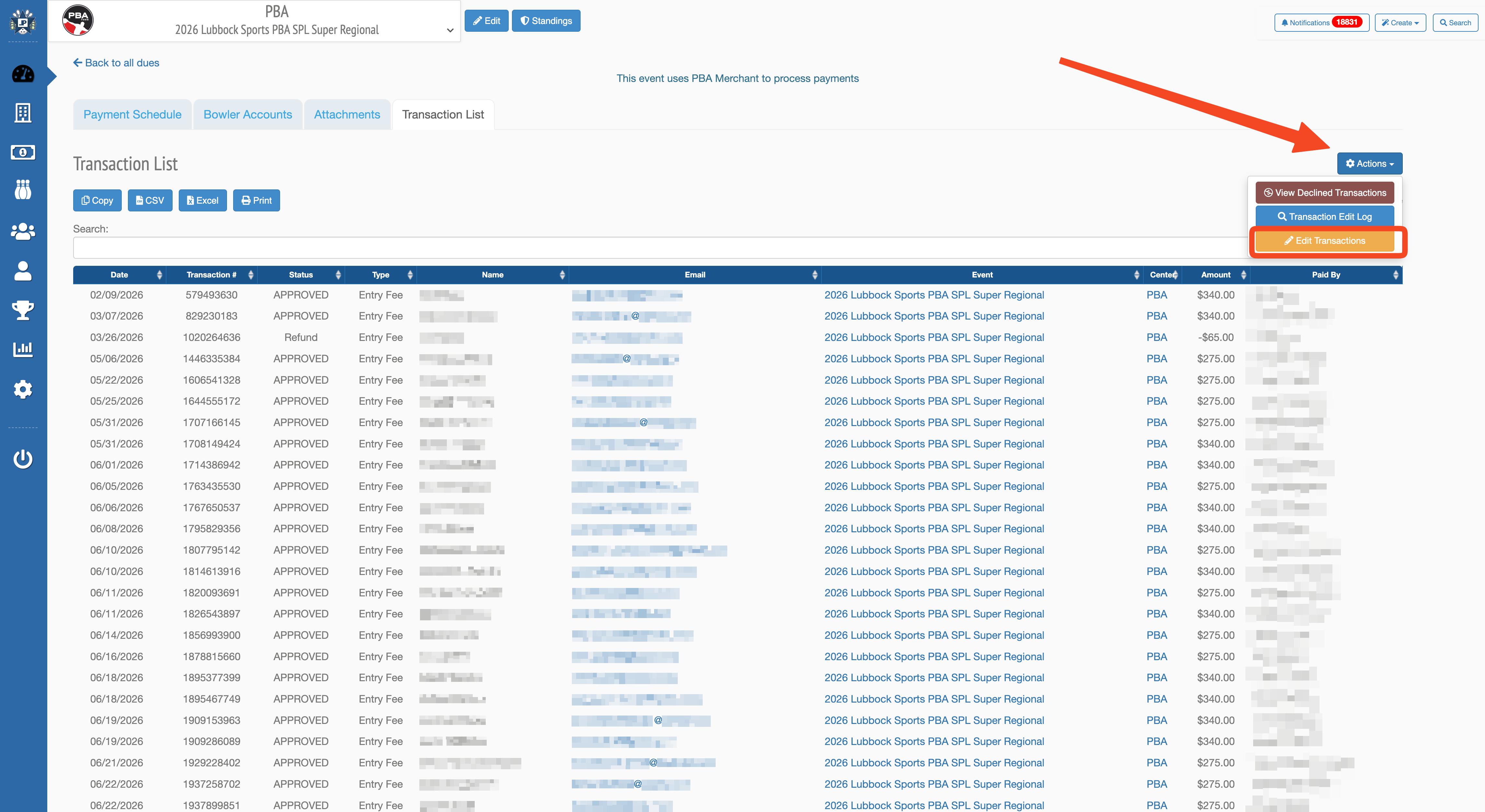
Open Actions and choose Edit TransactionsIn the top right of the Transaction List, click Actions, then select Edit Transactions. This unlocks a per-row Actions button on every transaction in the list.
Transaction List with the top-right Actions menu open, showing View Declined Transactions, Transaction Edit Log, and Edit Transactions
4
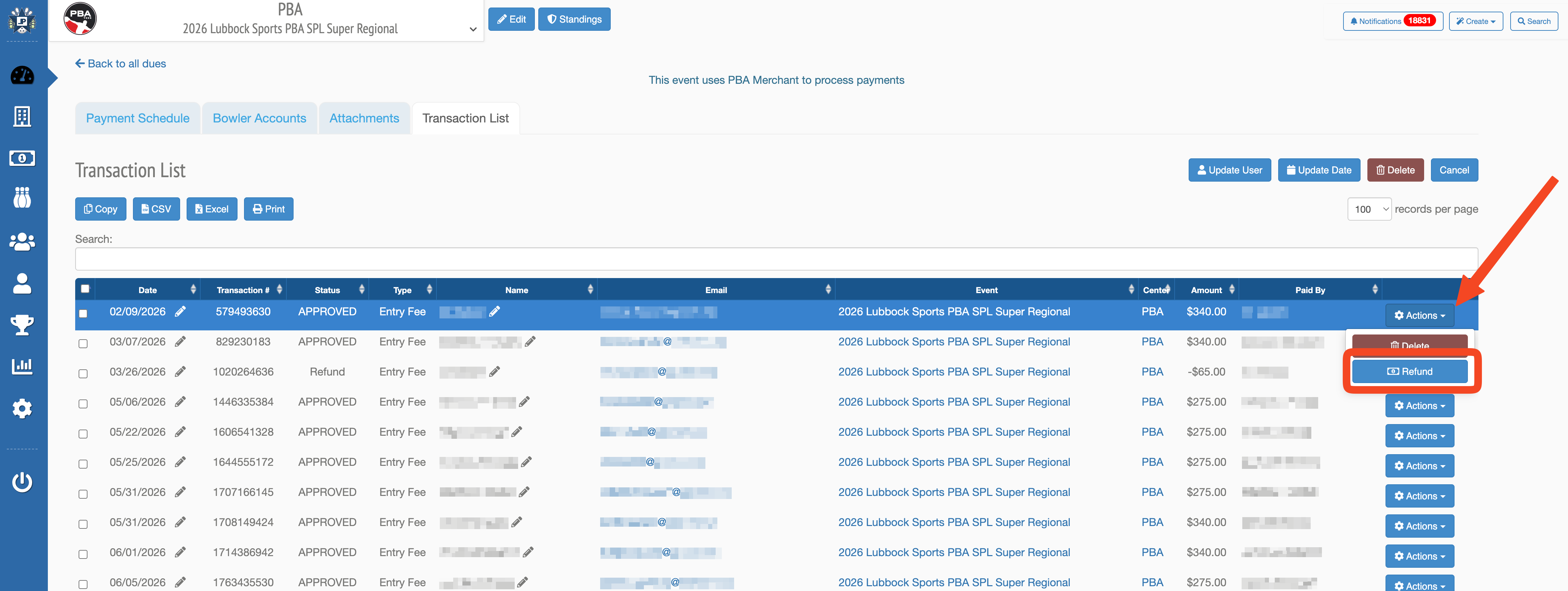
Find the transaction and click Actions → RefundLocate the bowler's transaction in the list, click the blue Actions button on that row, then choose Refund.
Transaction row in edit mode with the row-level Actions menu open and Refund highlighted
Payment method must still be on file

Refunds can only be completed if the bowler's original card is still saved in their wallet. If it was removed or deactivated, you will see an error that the payment method is missing. If this happens, no need to worry, just reach out to LeaguePals support and we will help get the refund taken care of for you.
5
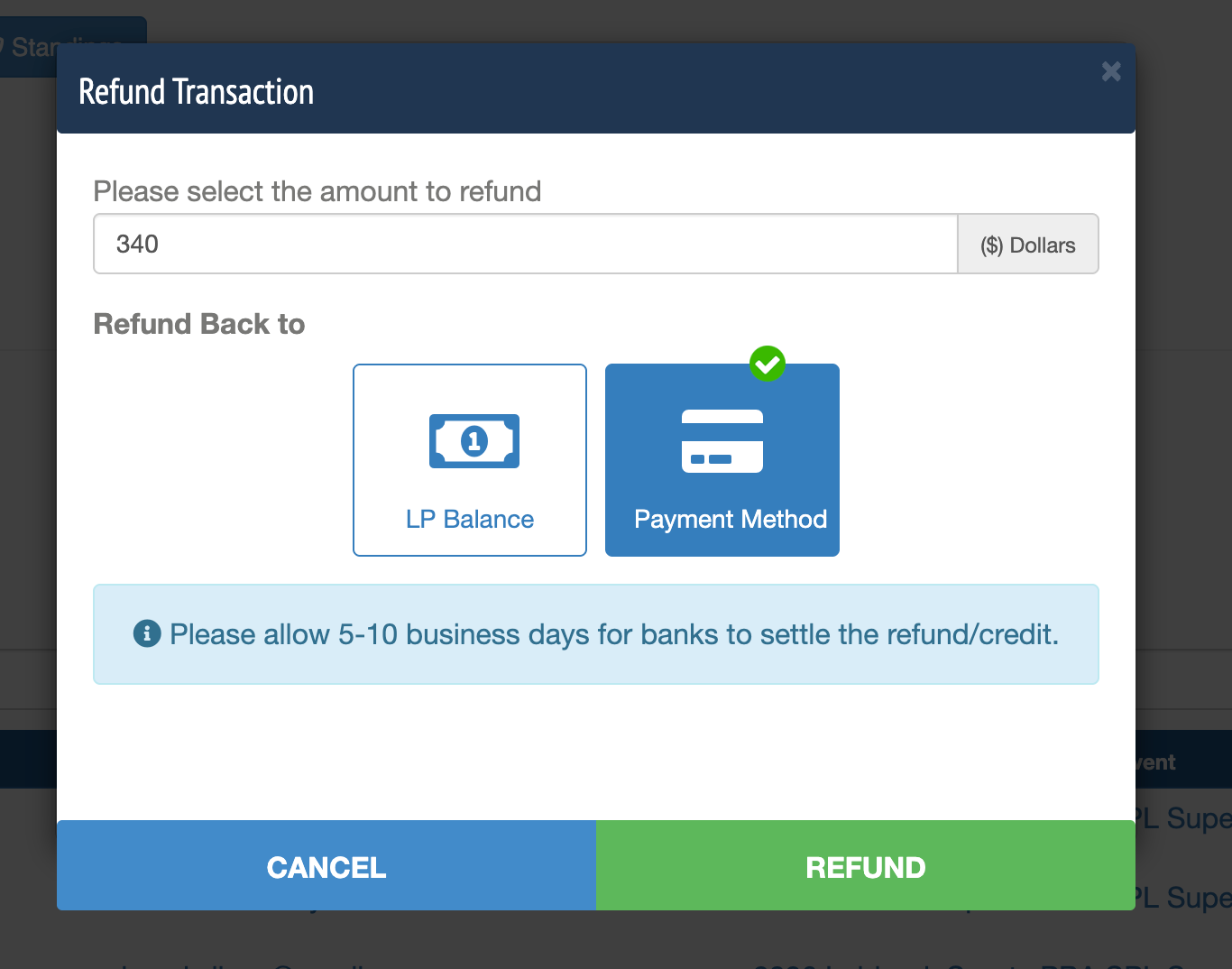
Enter the exact amount to refundIn the Refund Transaction window, enter the dollar amount to send back to the bowler. This can be the full charge or a smaller, partial amount, and can be repeated over multiple refunds as long as the total refunded never exceeds the original payment amount.
6
Leave Refund Back To set to Payment MethodPayment Method is selected by default and returns the money to the card originally charged. See Refund Destinations below if you need to send the refund to the bowler's LP Balance instead.
Refund Transaction window with the refund amount field and Payment Method selected as the refund destination
7
Click Refund to confirmThe refund is submitted right away once you click Refund. The original transaction's status does not change; a new transaction is added to the list showing the refunded amount. The bowler also receives an email letting them know they have been refunded.
Before you click Refund

Double-check the refund amount before confirming. Refunds cannot be edited or cancelled once submitted, and it can take 5 to 10 business days for the bank to settle the refund or credit.

Refund Destinations

When issuing a refund, you can choose where the money goes:

Default
Payment Method
Sends the refund back to the same card the bowler used for the original charge. This is the correct choice for most refunds, such as withdrawals, cancellations, or billing mistakes. Allow 5 to 10 business days for the bank to settle it.
Alternative
LP Balance
Credits the amount to the bowler's LeaguePals balance instead of their card. Nothing is sent back to the bank, so this is instant. Use this if the bowler would rather have credit toward a future league, tournament, or side event.

Troubleshooting

Can I refund only part of a payment?
Yes. Enter any dollar amount up to the original charge in the refund amount field. You can issue one refund or multiple partial refunds over time, as long as the total refunded never exceeds the original payment amount. Each refund adds its own transaction showing the amount refunded, and the original transaction's status stays APPROVED.
I got an error that the payment method is missing
This means the bowler's original card is no longer saved in their wallet. It may have been removed or deactivated after the original charge. Since the refund has nowhere to send the money, LeaguePals cannot complete it automatically. This is nothing to stress over, just reach out to LeaguePals support and we will take care of it for you.
I don't see an Actions button on each row
The per-row Actions buttons only appear after you click Actions → Edit Transactions in the top right of the Transaction List. Click Cancel in that same top-right area when you are done editing.
I refunded the wrong amount
Refunds cannot be edited or reversed once submitted. If you need to correct an amount, you will need to charge the bowler again for the difference or issue a follow-up refund (as long as the total refunded still does not exceed the original payment amount). If you are unsure how to proceed, submit a support ticket and our team will help.

Was this article helpful?

That’s Great!

Thank you for your feedback

Sorry! We couldn't be helpful

Thank you for your feedback

Let us know how can we improve this article!

Select at least one of the reasons
CAPTCHA verification is required.

Feedback sent

We appreciate your effort and will try to fix the article