
Edit Payment Schedule
Update Payment Schedule dates to control when bowlers owe dues.
Jump to section
Overview
An event's payment weeks do not have to match its bowling weeks. You can change any week's due date on the Payment Schedule.
Step-by-Step: Changing a Due Date
1
Open the Events tab on your DashboardFrom your LeaguePals Dashboard, click the Events tab. Your current events are listed under Active.
2
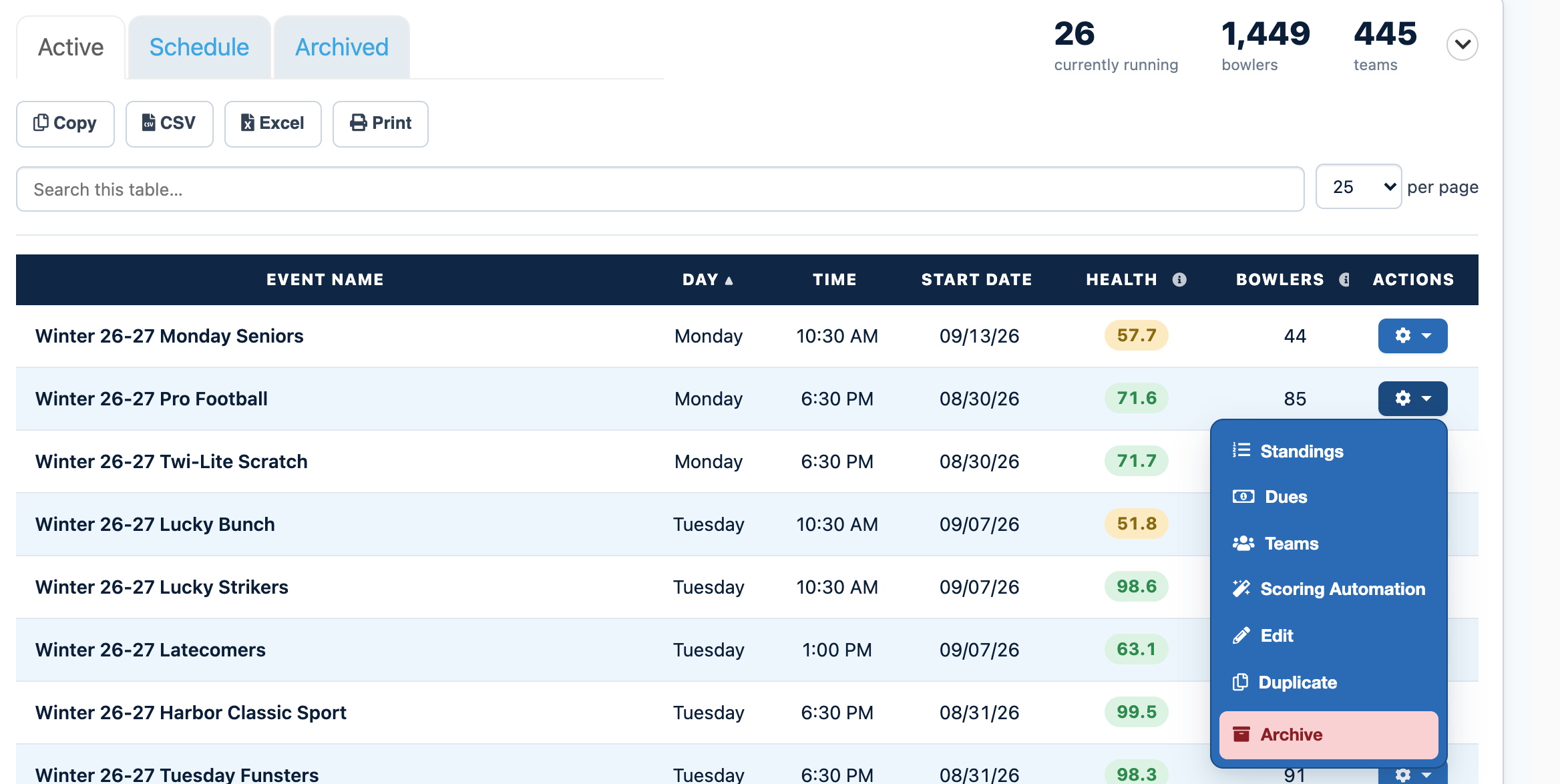
Click the gear icon next to your eventFind your event in the list and click the gear icon in the Actions column. If you have a lot of events, type the event name into Search this table to find it faster.
3
Choose DuesThis opens the event's dues page with the Payment Schedule, Bowler Accounts, Attachments, and Transaction List tabs.
4
Open the Payment Schedule tabThe Payment Schedule tab is at the top of the dues page.
5
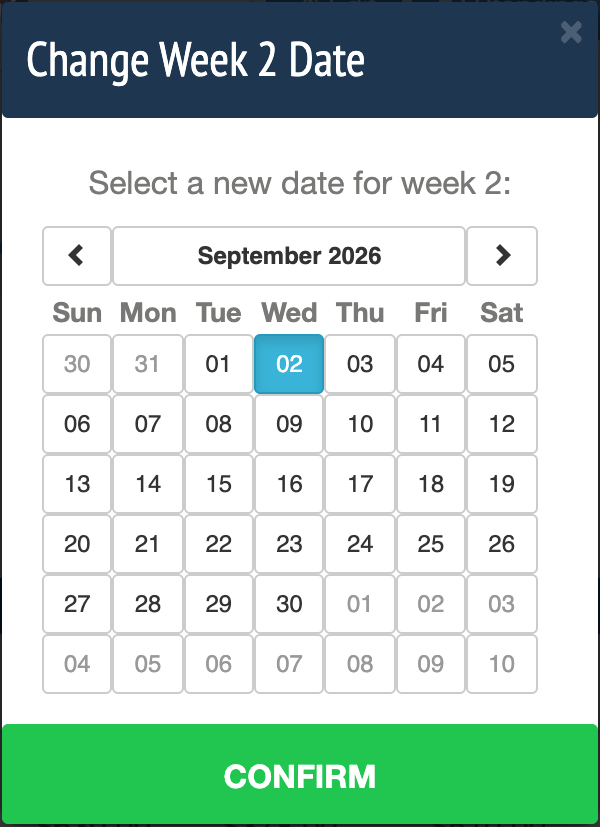
Click the blue pencil next to the dateClick the blue pencil icon next to the date you want to change. A Change Week Date window opens.
6
Pick the new date and saveChoose the new date and save. This changes when dues are due for that week.
Tips and Notes
Good to know
The payment schedule and lane schedule are separate, so you can set each one to whatever schedule your league needs.
Can't find your event?
Events from past seasons are no longer in the Active list. Click the Archived tab next to Active on the Events tab to find them.
Need more help?
If you get stuck, submit a support ticket and our team will be happy to help.
Was this article helpful?
That’s Great!
Thank you for your feedback
Sorry! We couldn't be helpful
Thank you for your feedback
Feedback sent
We appreciate your effort and will try to fix the article