
Overview
Your Dashboard is home base for running your center in LeaguePals. In one place you get a live picture of your events, payments, bowler retention, lane analytics, and day to day operations, and every tool you need for an event is one click away from the gear icon next to it.
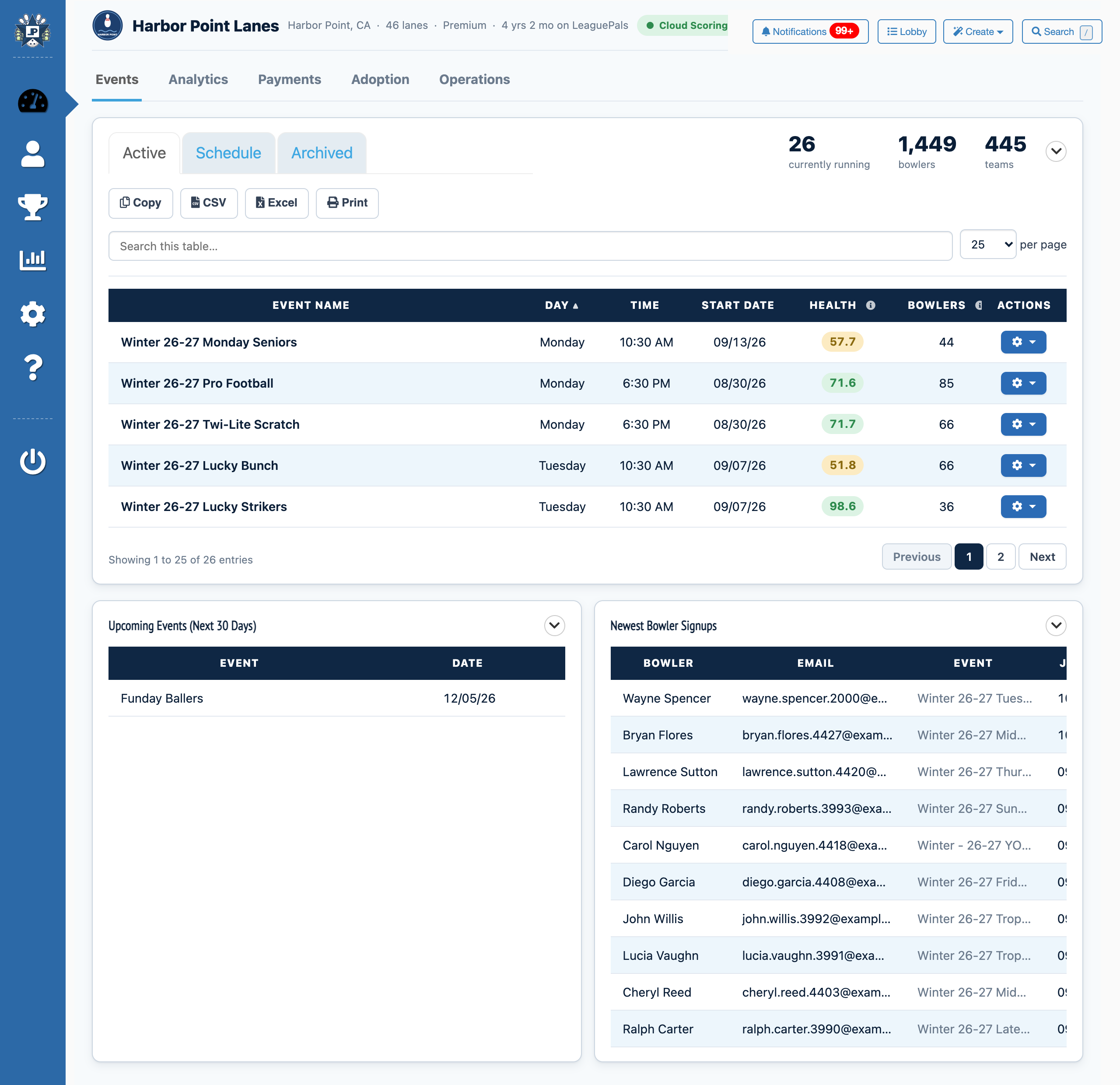
The first time you log in you will get a short guided tour. You can replay it any time with the Dashboard tour button under your center name.
While the new dashboard rolls out you may see a banner that says You are previewing the new dashboard. You can click Back to the classic dashboard at any time.
The Toolbar
The toolbar at the top right follows you to every page.
- Notifications: Cloud Scoring alerts, such as subs that need to be verified. See Notification Center.
- Lobby: Opens your center's public event lobby.
- Create: Create a new league, team, or push and email notification.
- Search: Find any event or bowler. Press the / key to open it from any page. See Search.

Time Ranges, Tooltips, and Exports
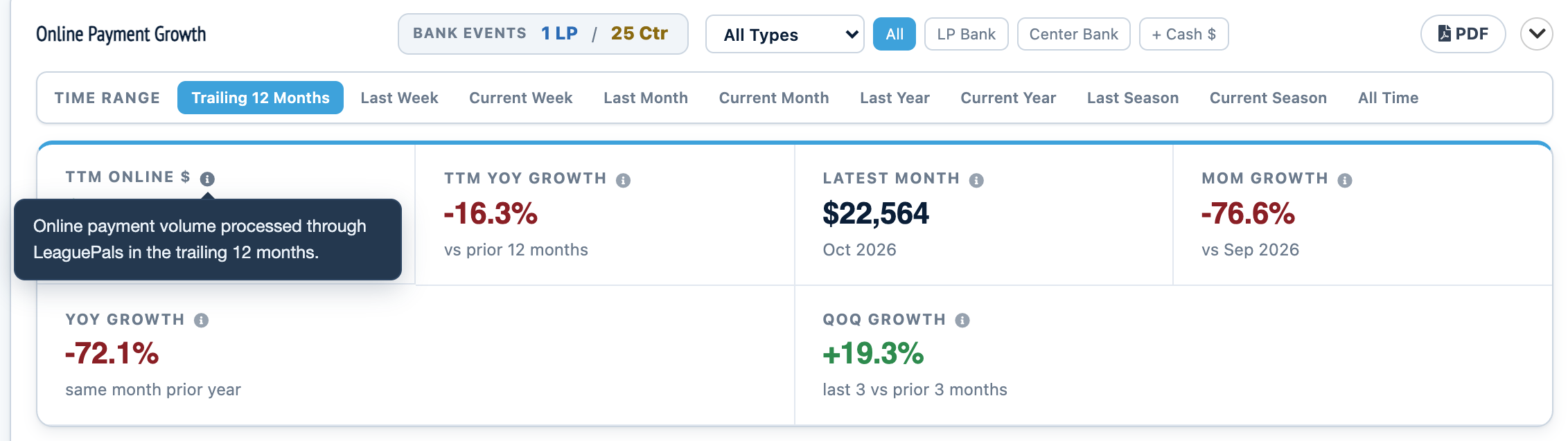
- Time range: Cards like Online Payment Growth have Time Range presets to change the period the numbers cover.
- Tooltips: Hover over the i icon next to a stat or column to see exactly what it measures.
- Exports: Most cards have a PDF button. Tables like Lane Utilization, Secretary Coverage, and Event Fill Rate also have CSV, and the event list and Edit Activity have Copy, CSV, Excel, and Print.
- Benchmarks: Some stats show how your center compares to similar centers, such as Event Fill Rate showing your rank among centers your size.
Events Tab
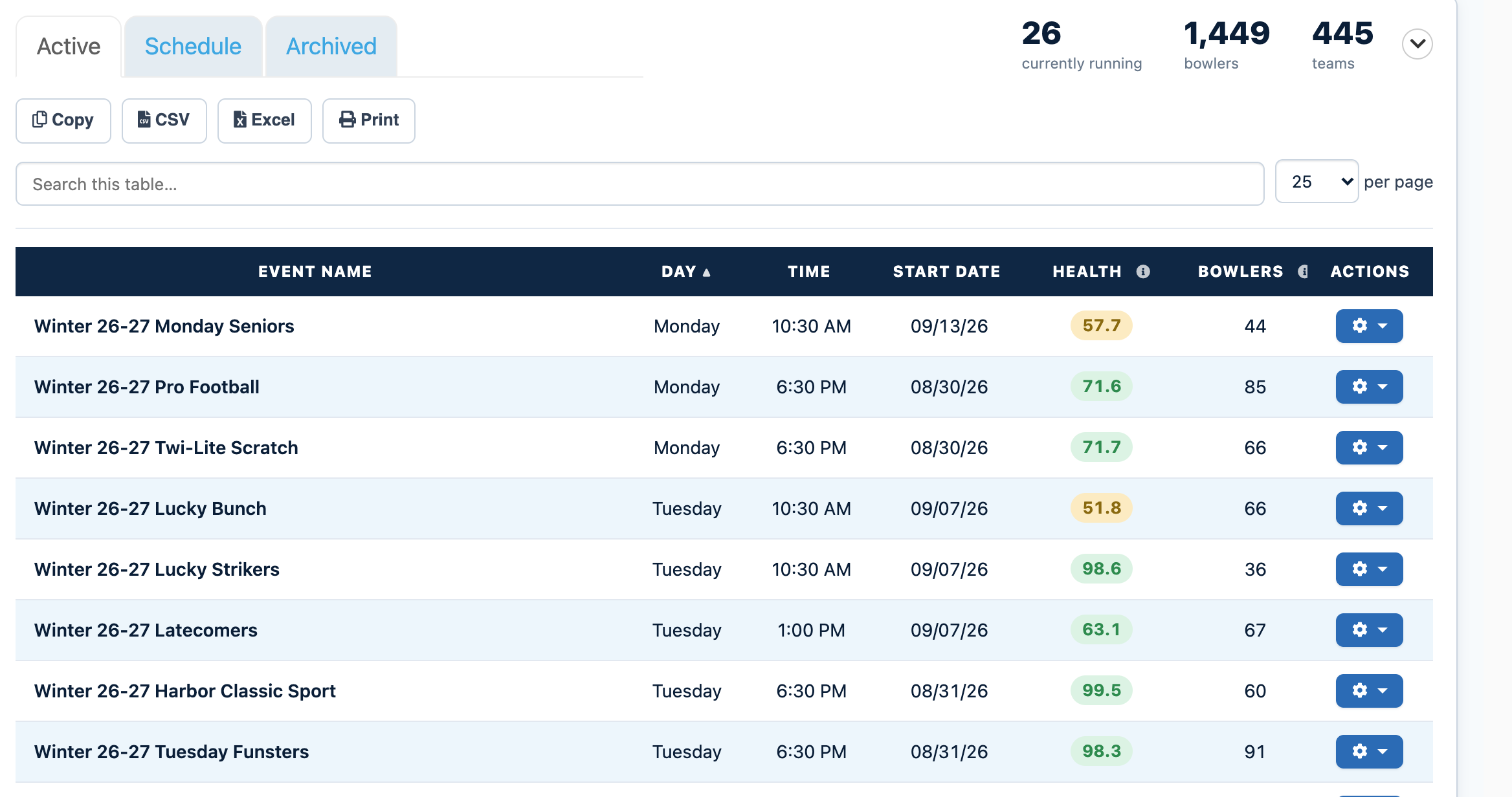
Your home view for running events. The totals at the top show your currently running events, bowlers, and teams.
Below the event list you will also see Upcoming Events (Next 30 Days) and Newest Bowler Signups.
Payments Tab
- Online Payment Growth: Month by month online payments with stat tiles, Time Range presets, and filters for bank and payment type.
- Delinquent Leagues: Leagues with unpaid balances. Click View list to see them.
- Untracked Leagues: Leagues that are not recording their dues payments in LeaguePals yet.
- Transactions and Refunds: Totals for the time range you choose.
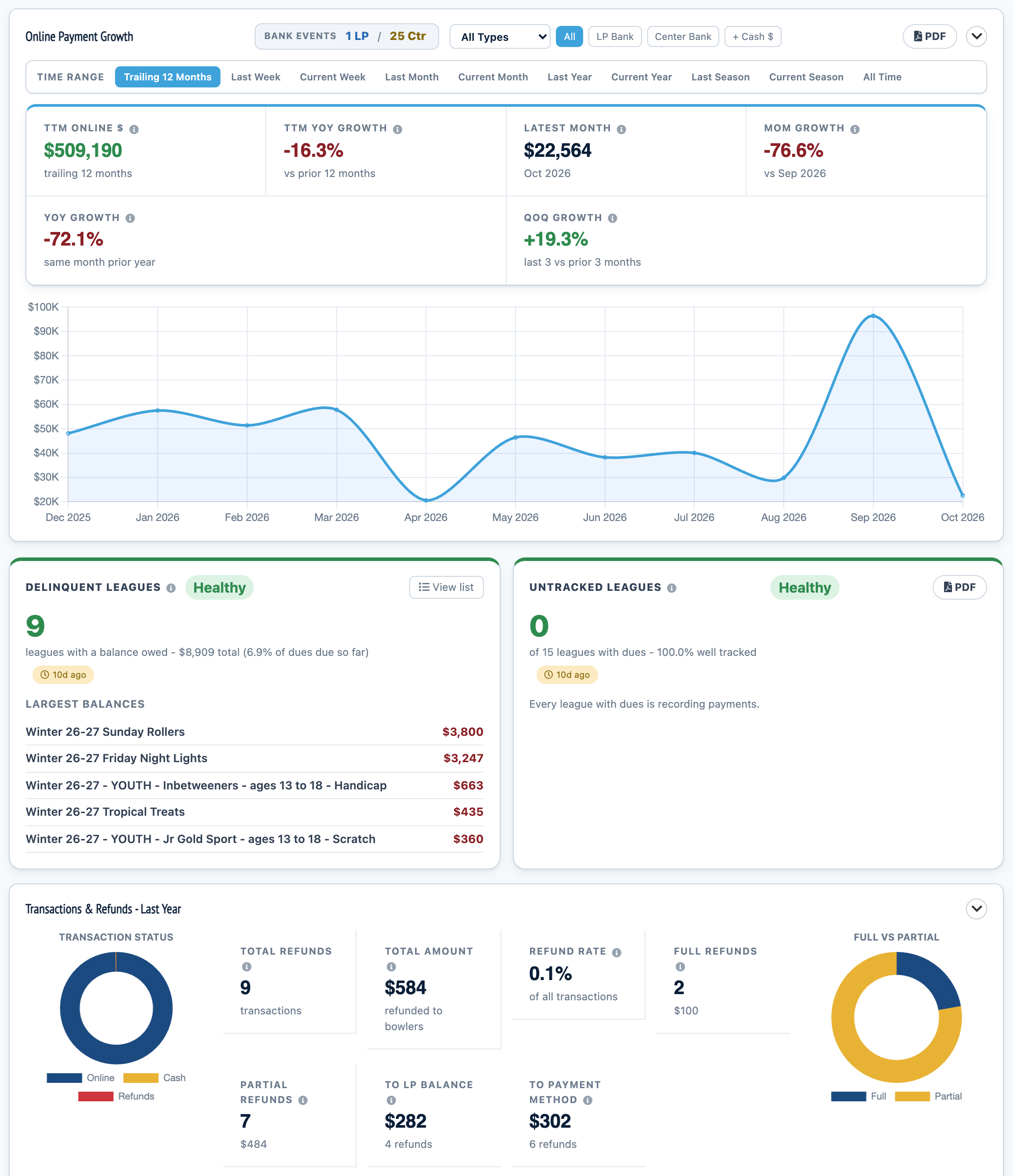
For one event's dues, click the gear icon next to it on the Events tab and choose Dues. See Manage Dues.
Adoption Tab
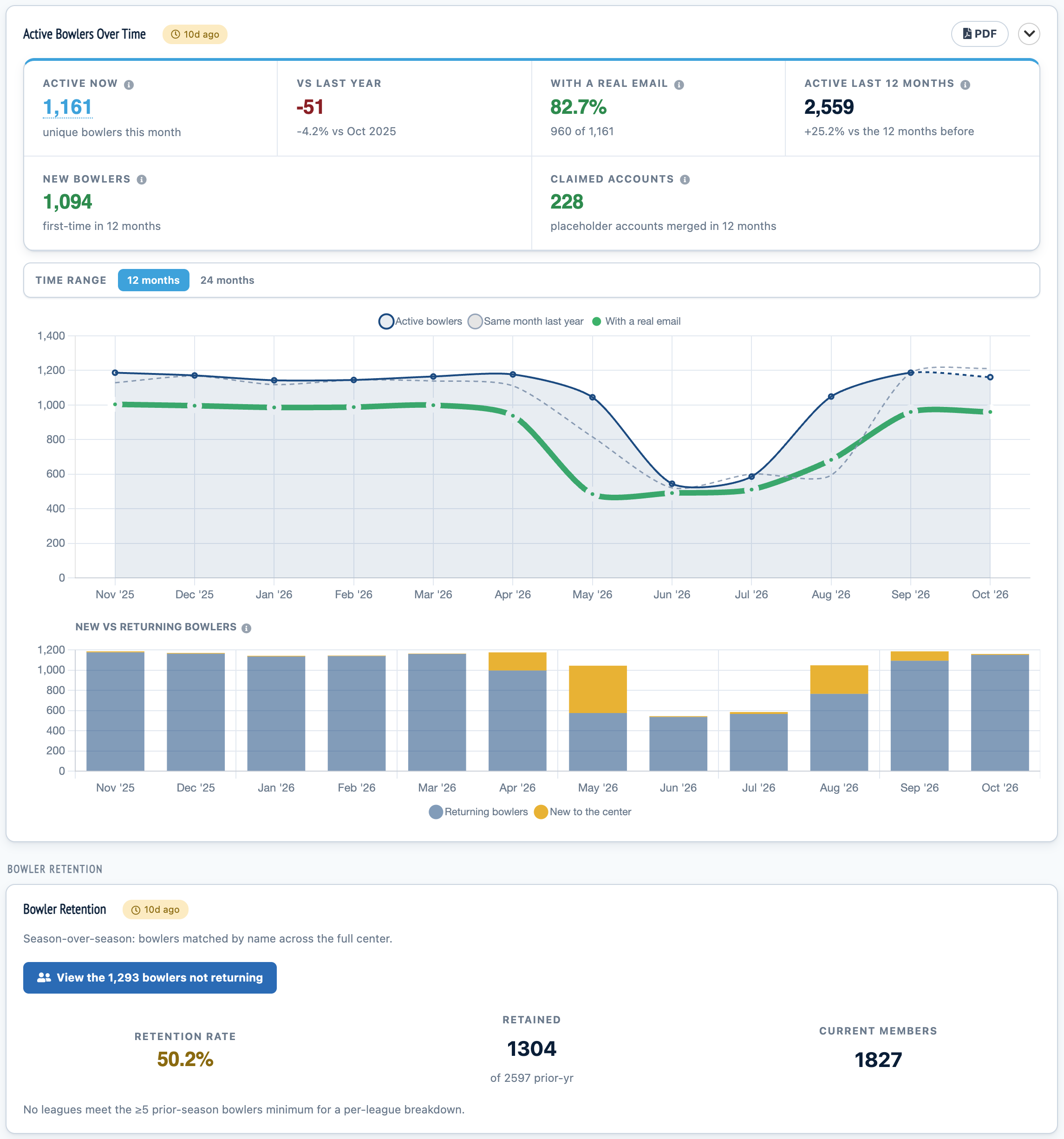
- Active Bowlers Over Time: How many bowlers are active each month.
- New vs Returning Bowlers: The share of your bowlers who are new each season.
- Bowler Retention: Season over season retention. Click View the bowlers not returning to see exactly who did not come back. This is a great list for win-back calls.
Operations Tab
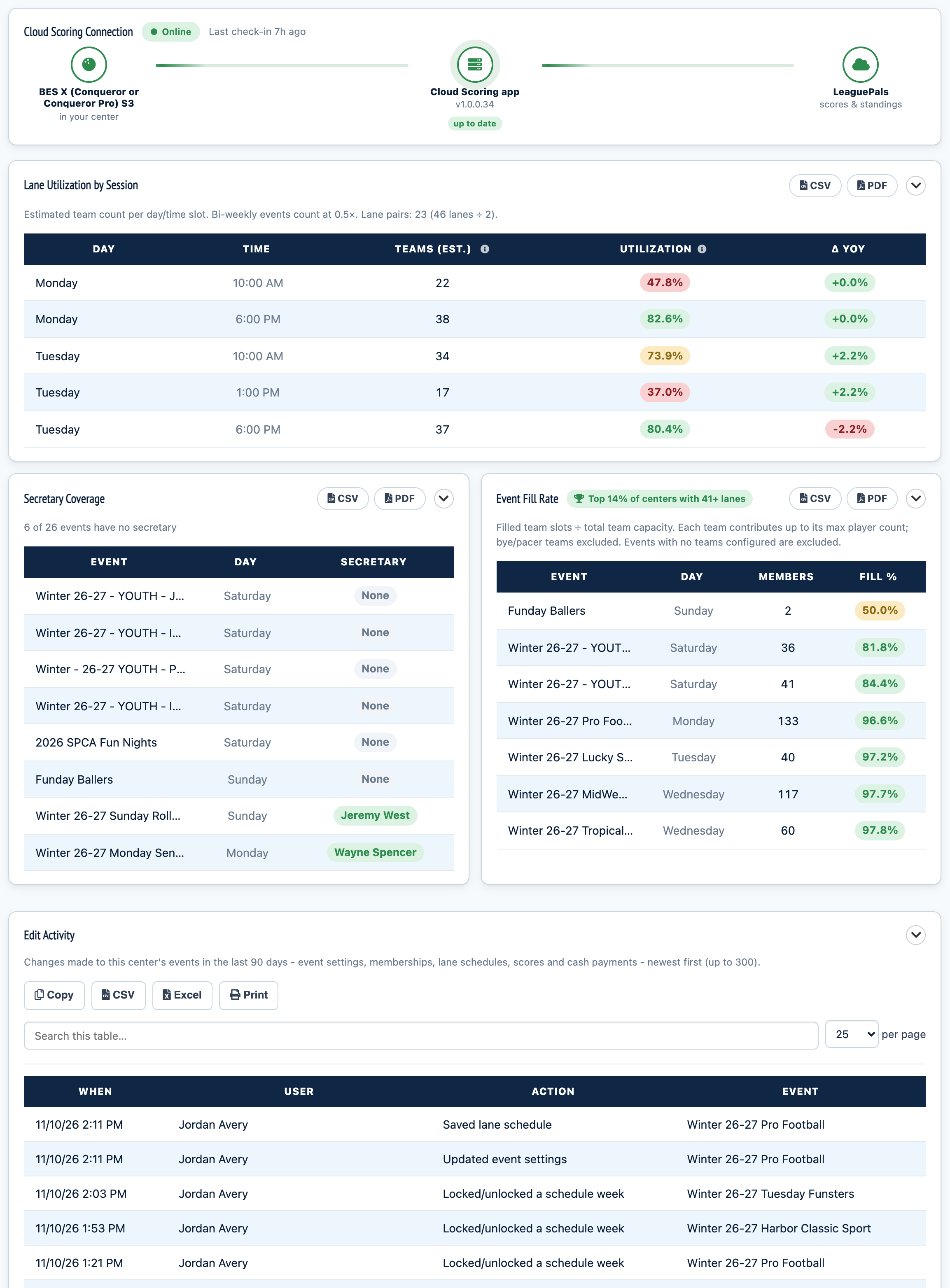
- Cloud Scoring Connection: Whether your scoring connection is online, when it last checked in, and whether the Cloud Scoring app is up to date. See Cloud Scoring Setup.
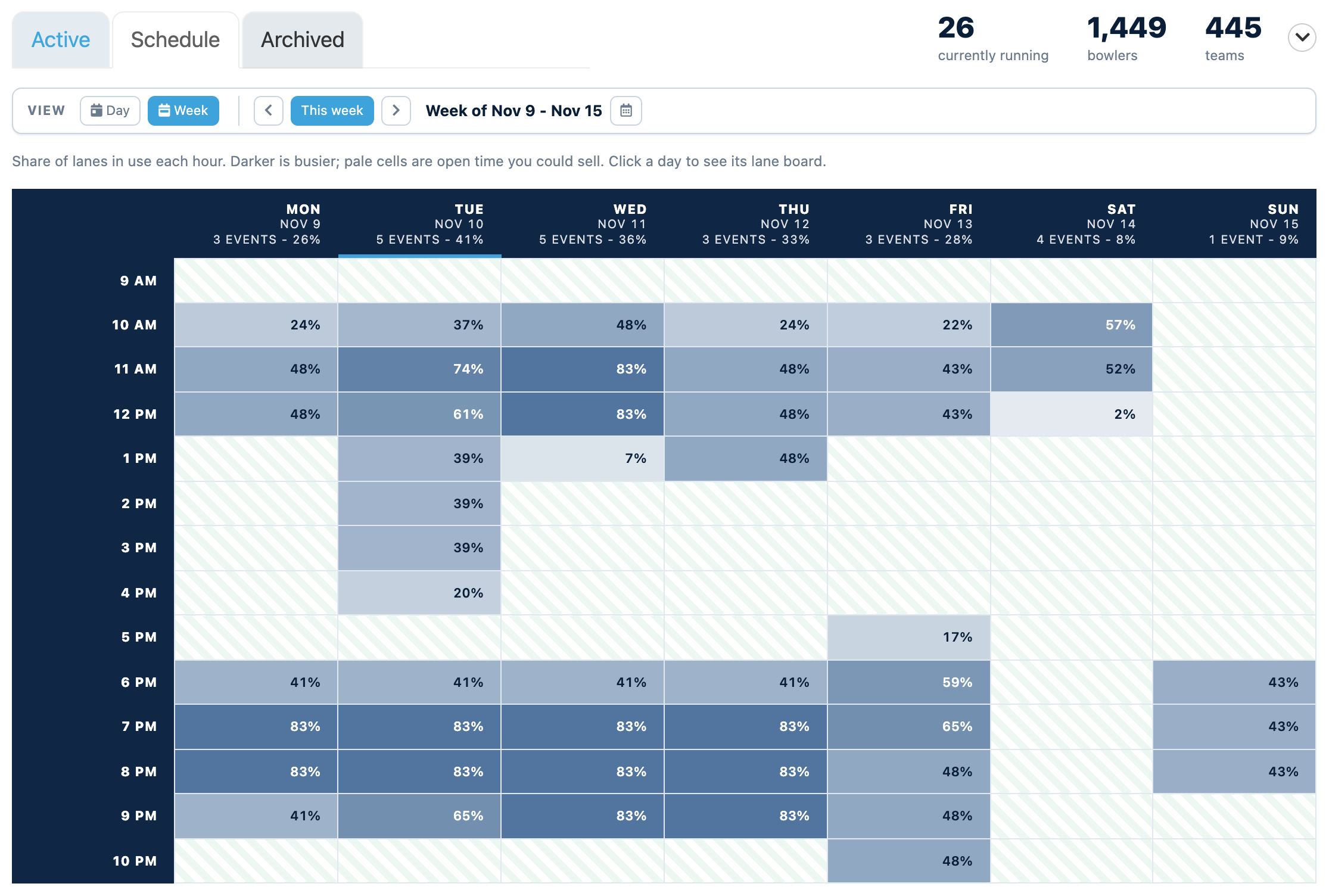
- Lane Utilization by Session: How full your lanes are for each day and time slot, compared to last year.
- Secretary Coverage: Which events have a league secretary and which do not. See Adding a League Secretary.
- Event Fill Rate: How full each event is compared to its team capacity.
- Edit Activity: A log of changes made to your center's events in the last 90 days, including event settings, memberships, lane schedules, scores, and cash payments.
Analytics Tab
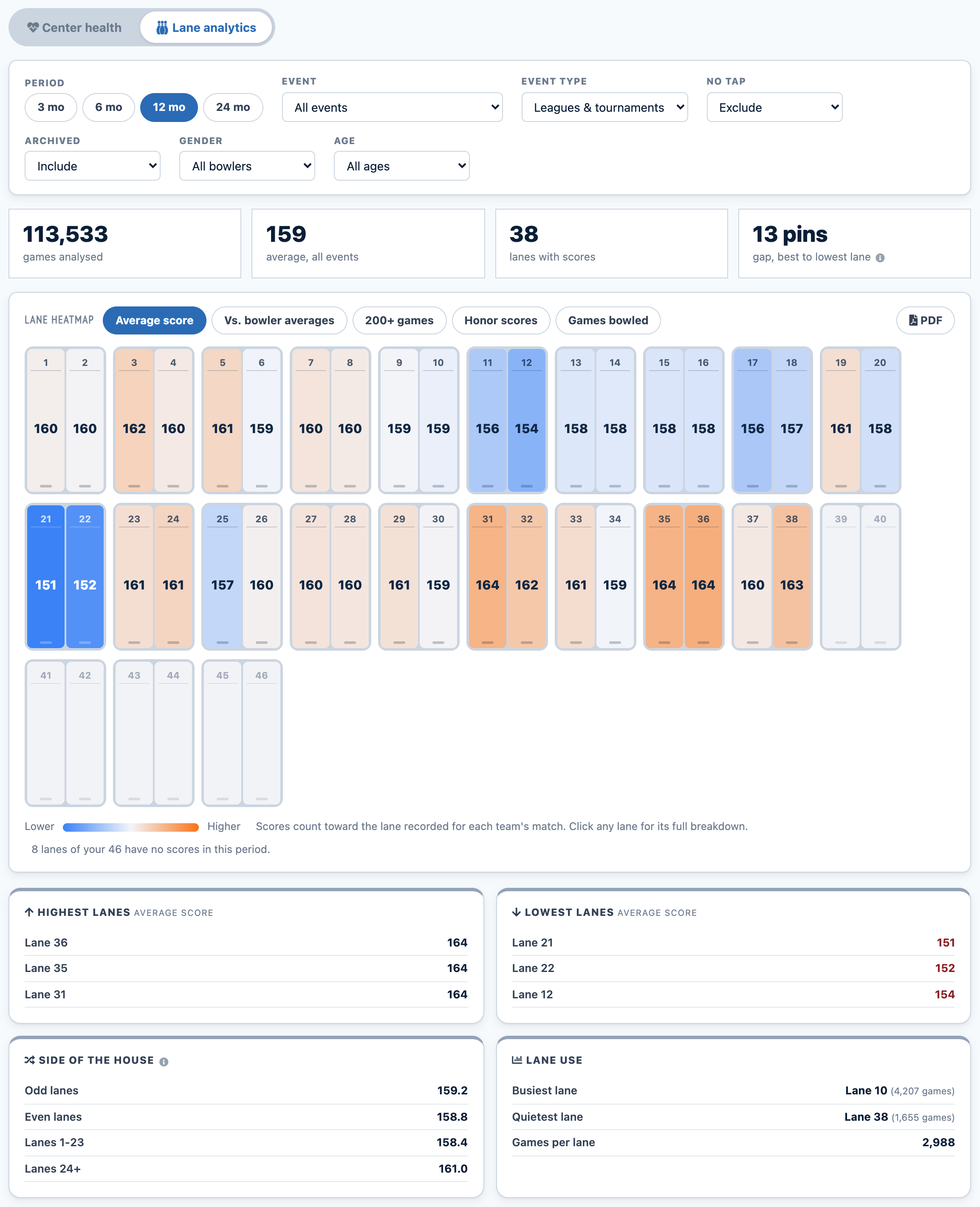
The Analytics tab has two views. Use the Center health and Lane analytics switch at the top to move between them.
Managing an Event from the Gear Icon
Every event on the Events tab has a gear icon in its Actions column. This replaces the old Manage Events, Manage Dues, and Manage Teams buttons in the sidebar.
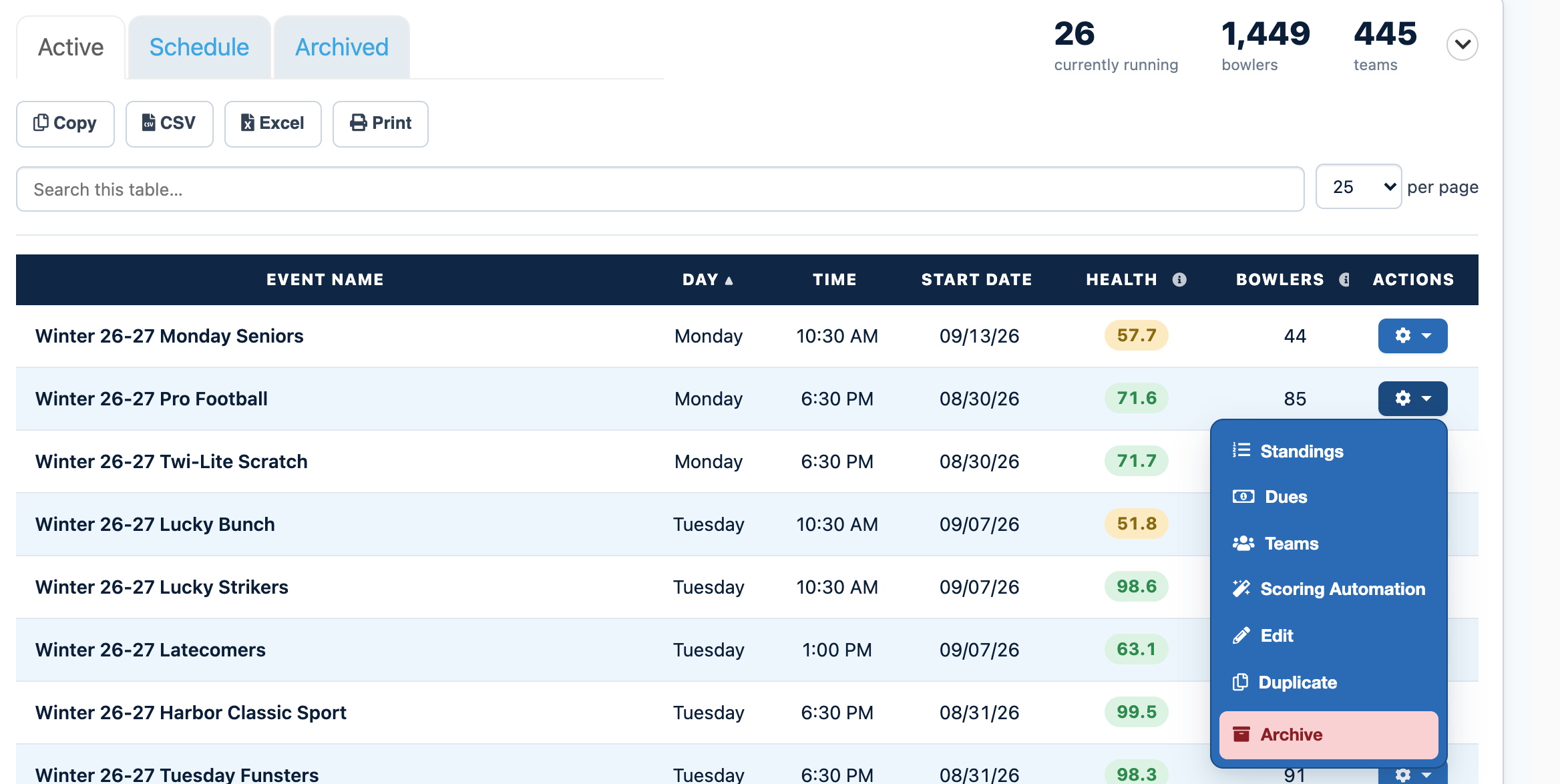
- Standings: The event's main page with standings, scores, Edit Memberships, and Edit Substitutes.
- Dues: Payment Schedule, Bowler Accounts, Attachments, and Transaction List.
- Teams: Teams, rosters, lineups, and entering averages.
- Scoring Automation: Opens as a popup. Prepare Rosters And Recaps is set to next week, Process Event Standings is set to the current week, any warnings show right in the window, and you can print blank league recaps. See Cloud Scoring.
- Edit: The event's rules and settings.
- Duplicate: Start a new event using this one as a template. See Duplicate An Event.
- Archive: Move a finished event to the Archived view.
See What a Bowler or Secretary Sees
When helping someone over the phone, it helps to see exactly what they see. Open a bowler's or league secretary's profile (use Search) and click the View dashboard button to open its menu. You get a read only view of their dashboard, so nothing you click changes their account.
Finding Archived Events
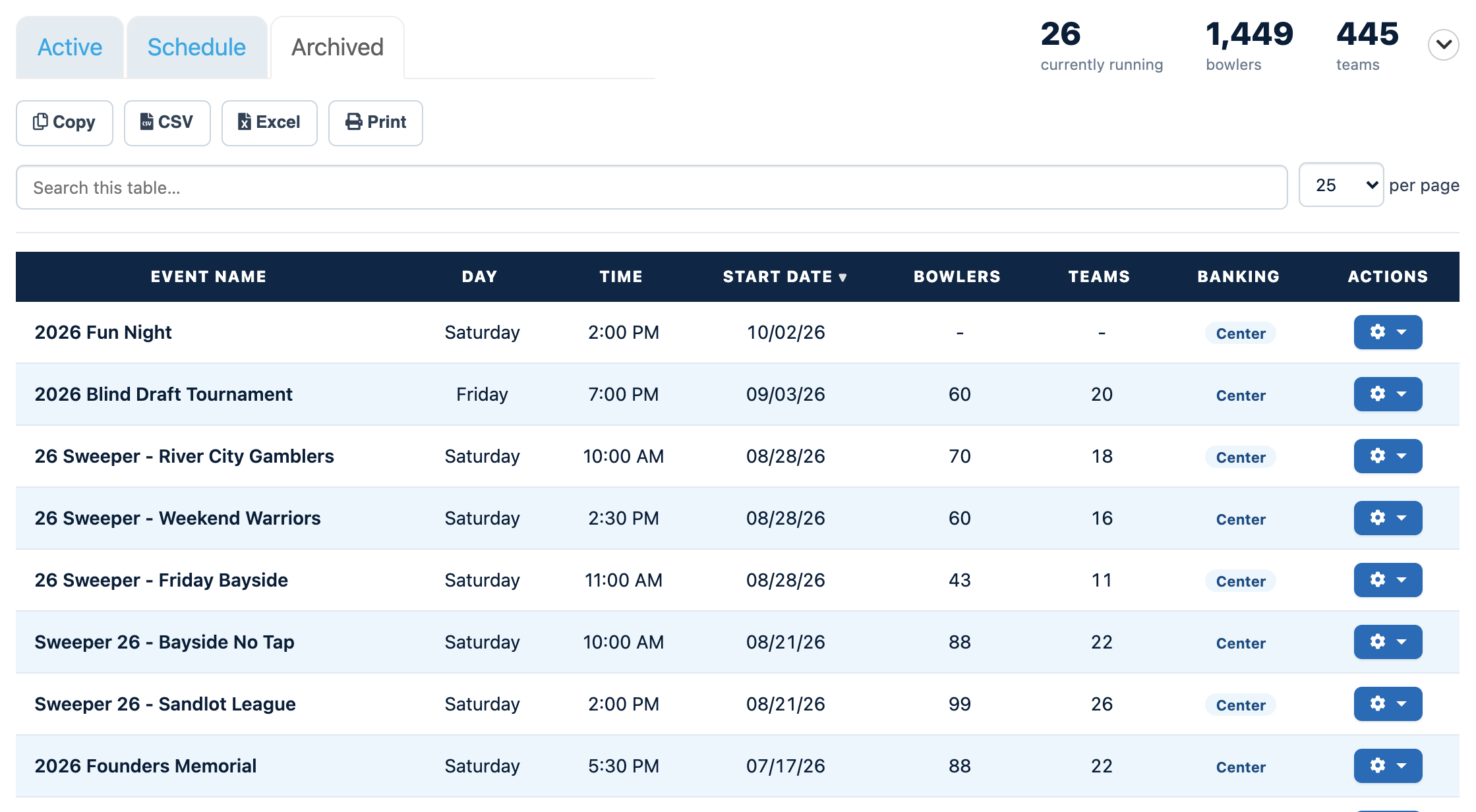
To archive a finished event, click its gear icon on the Active view and choose Archive.
Getting Help
Have an idea for a stat you would like to see on your dashboard? Let us know. You can also reach our team by phone, or submit a support ticket any time.
Was this article helpful?
That’s Great!
Thank you for your feedback
Sorry! We couldn't be helpful
Thank you for your feedback
Feedback sent
We appreciate your effort and will try to fix the article