Walk-in tournaments move quickly, and LeaguePals is designed to support that pace when the event is set up correctly ahead of time. The key is to build flexibility into your lane and roster setup so last-minute bowlers can be added without disrupting scoring.
This guide walks through the recommended setup for walk-in tournaments.
Step 1: Create the Tournament and Enter Known Details
Start by creating your tournament and entering everything you already know, including:
- The lanes that will be used for the tournament
- Any teams or bowlers already registered
- Known averages, divisions, or squads
You do not need to wait until all bowlers are known before continuing.
Think of this step as building the framework of the tournament. You are creating structure, not final rosters.
Step 2: Add Known Bowlers (CSV Import or Manual Entry)
You can add confirmed bowlers in either of the following ways:
- CSV Import (recommended for larger preregistration lists)
- Manual entry, one team or bowler at a time
Both methods work the same for tournaments.
If you already have a registration spreadsheet, CSV import is usually the fastest option. If your list is smaller or still changing, manual entry works just as well.
Creating teams (manual or CSV):
https://help.leaguepals.com/support/solutions/articles/44002493829-create-new-teams
Step 3: Create Empty Teams for Walk-Ins (Critical Step)
Because walk-in tournaments always include last-minute bowlers, you must create additional teams that will remain vacant.
How to set this up correctly:
- Create extra empty teams on:
- One end of your lane block or
- Both ends of the lane block (recommended when expecting a high number of walk-ins)
- Do not pre-fill these teams
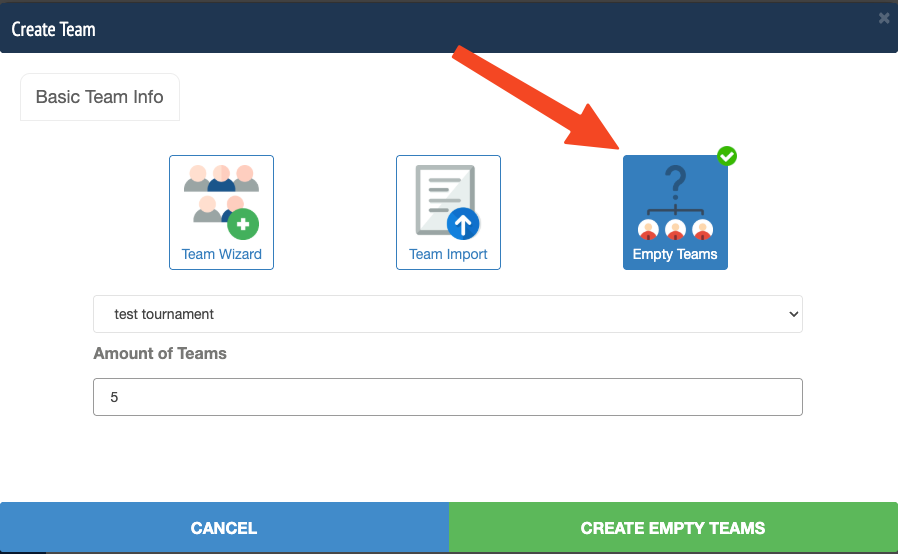
Do not pre-fill these teams. They must remain vacancies, this is what enables empty teams to be sent to the lanes and allows walk-in bowlers to enter their names directly on the scoring system.
If teams are pre-filled or converted to substitutes instead of vacancies, empty teams will not be sent to the lanes.
Although this article references leagues in Week 1, the same concept applies to walk-in tournaments:
https://help.leaguepals.com/support/solutions/articles/44002493829-create-new-teams
Step 4: Send Rosters to Lanes (Select “Empty Rosters”)
When preparing and sending rosters to the lanes:
- Confirm “Empty Rosters” is selected before sending
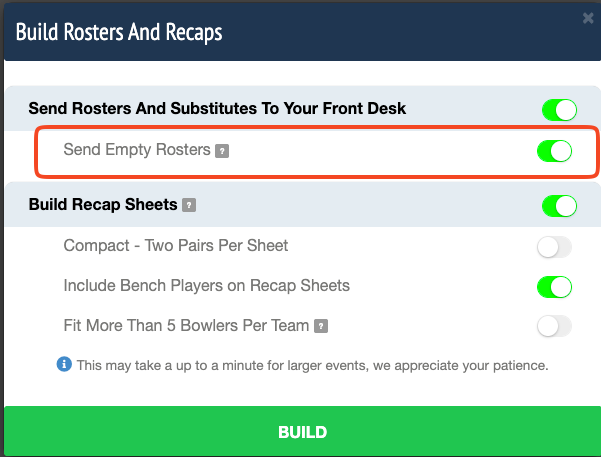
This ensures:
- Walk-in bowlers can type their names in at the lane
- Lane assignments do not need to be rebuilt mid-event
If empty teams are not sent, adding or moving bowlers after scoring starts may cause issues or require workarounds outside of LeaguePals.
Step 5: Handling Walk-Ins on Tournament Day
As bowlers arrive:
- Assign them to one of the pre-created vacancy teams
- Provide them an empty score sheet
- Bowlers enter their names directly at the scoring console (or staff can assist)
- Apply averages or divisions as needed
- Continue play without stopping scoring or re-sending rosters
This approach avoids:
- Mid-event roster rebuilds
- Post-event spreadsheets or manual score reconciliation
Common Questions & Best Practices
What if we expect a high percentage of walk-ins?
Create more vacancy teams than you think you need. Extra vacant teams will not affect scoring.
Does this work with Vector, Sync, or BES-X?
Yes. Vacancy teams are the most reliable way to support walk-ins while keeping scoring systems in sync.
What causes walk-in issues most often?
- Not creating vacancy teams ahead of time
- Pre-filling teams instead of leaving them vacant
- Forgetting to send “Empty Teams” to lanes
Was this article helpful?
That’s Great!
Thank you for your feedback
Sorry! We couldn't be helpful
Thank you for your feedback
Feedback sent
We appreciate your effort and will try to fix the article