Have past leagues you want to revisit? Your LeaguePals account keeps a record of every league you've ever been part of. You can view stats, standings, and results from any of your past seasons through the Archived Events section on your Bowler Dashboard.
Steps to Access Archived Events
1. Log in to your LeaguePals account
Go to https://www.leaguepals.com/login and sign in.
2. Go to your Bowler Dashboard
After logging in, you'll land on your Bowler Dashboard. This is where all of your active and past leagues are managed.
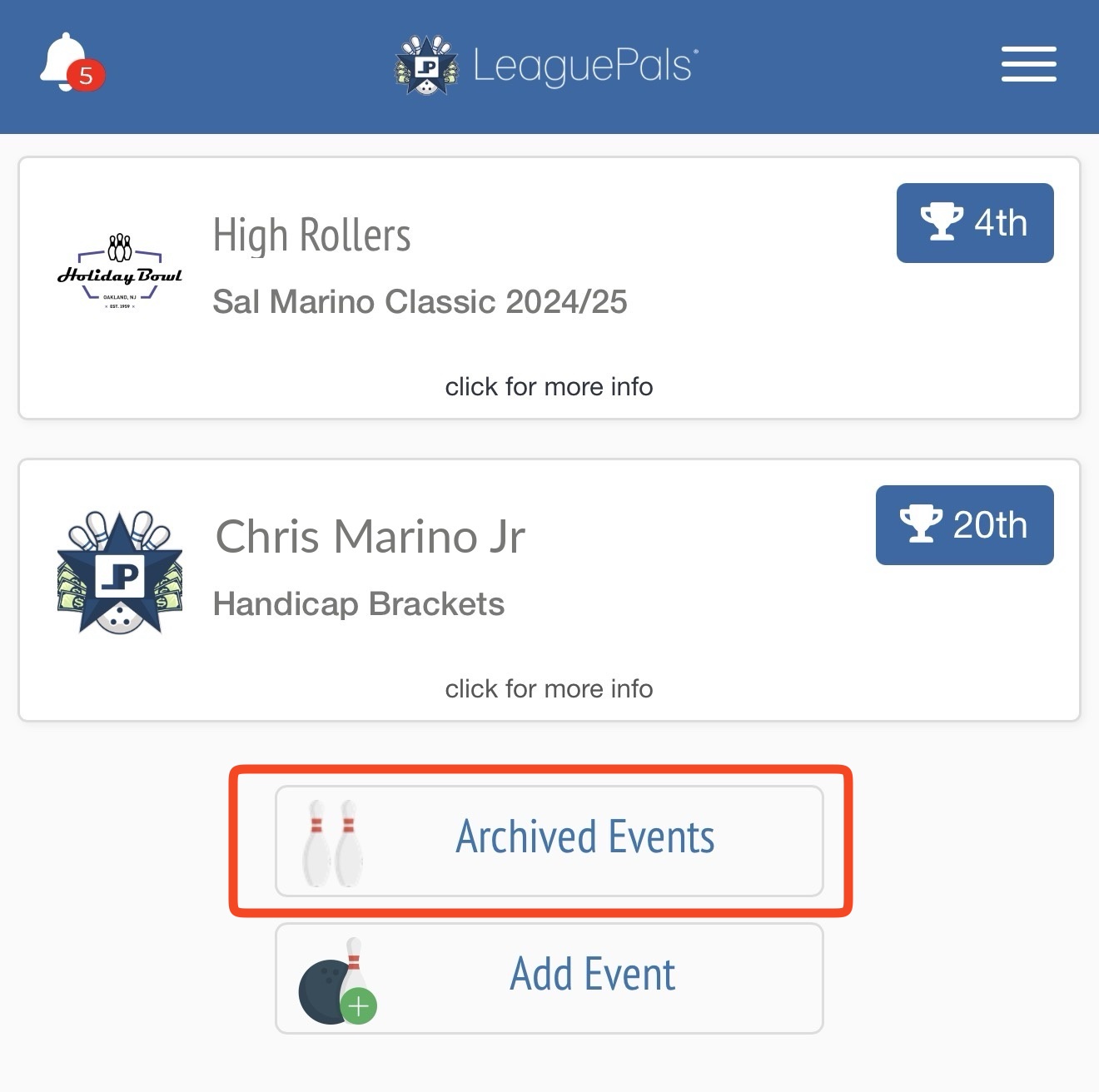
3. Scroll to the bottom and click "Archived Events"
Scroll down to the bottom of your Bowler Dashboard. You'll see an Archived Events button — click it.
4. Open the "Please select a team" dropdown
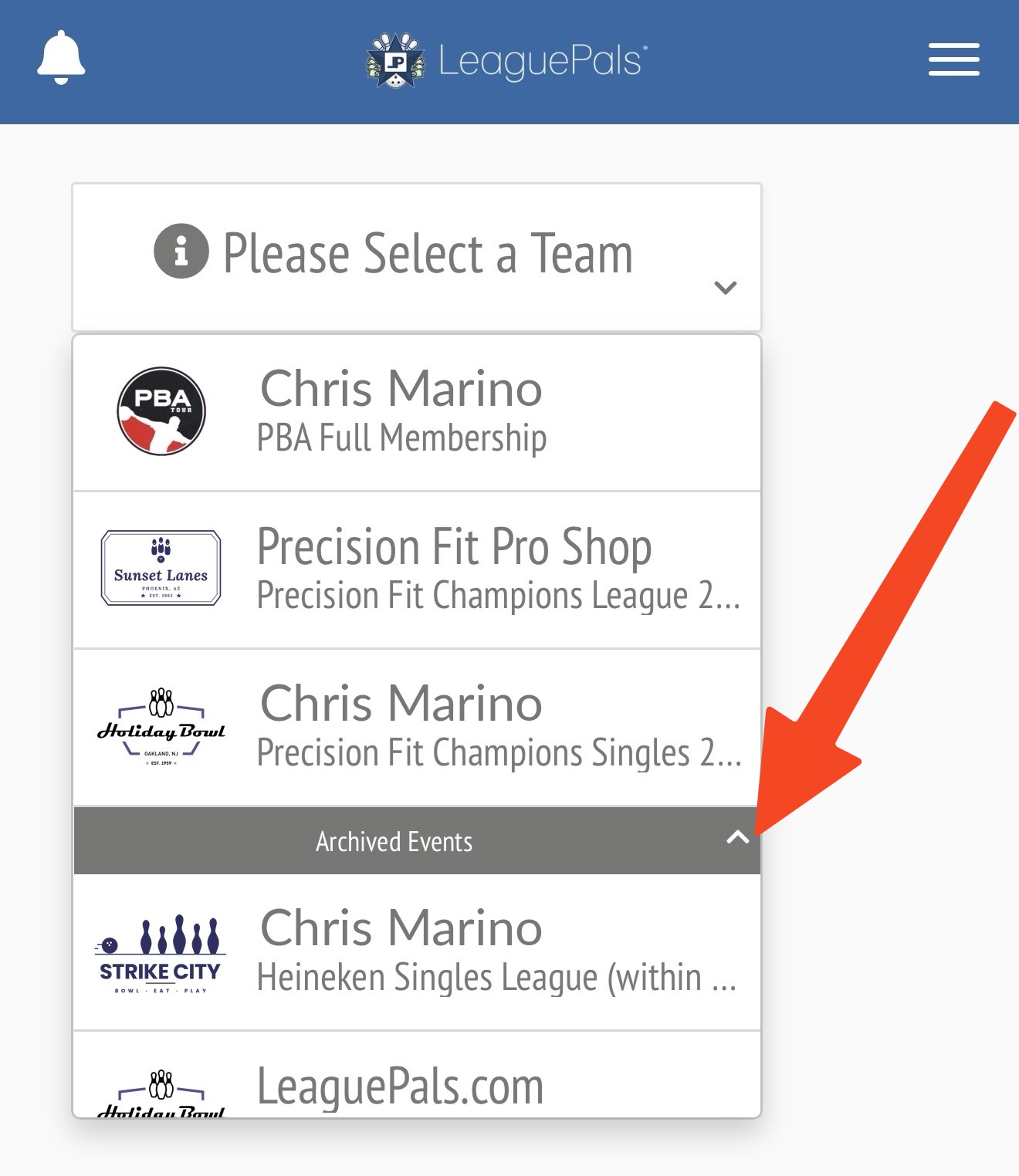
On the Archived Events page, click the "Please select a team" dropdown near the top of the page.
5. Select your archived league
Inside the dropdown, scroll to the Archived Events section. Click on the league you'd like to view. This will load all recorded stats and results for that season.
Tips
- All past leagues are listed - every league you've ever been enrolled in on LeaguePals will appear in the archived events section, regardless of how old it is.
- Stats are read-only - archived league data is for viewing only and cannot be edited.
- Don't see your league? If a past league doesn't appear, it may not have been run through LeaguePals. Contact your league or center for any records that predate LeaguePals.
Note: The Archived Events section is only visible from the logged-in Bowler Dashboard. If you access your league through the public-facing Lobby without logging in, you will not see archived stats or the Archived Events button.
Was this article helpful?
That’s Great!
Thank you for your feedback
Sorry! We couldn't be helpful
Thank you for your feedback
Feedback sent
We appreciate your effort and will try to fix the article